
If you’re working on automation flows that require SMS-based OTP verification, you’ve probably run into the challenge of reading those messages automatically. In this post, I’ll try to show you a simple way to handle OTPs using iOS Shortcuts and an RPA bot like UiPath.
📱 Automating SMS OTP with iOS Shortcuts and RPA
The iOS Shortcuts app allows you to create automations that are triggered by incoming SMS messages.
Using this feature, you can set up a filter to detect specific types of SMS (such as those containing OTP codes) and automatically forward them to a predefined email address.
Once the message is forwarded, UiPath (or any other RPA bot) can monitor that inbox, extract the token from the message, and input it directly into the screen of the application.
This effectively automates the entire SMS verification step, no manual input required.
Here’s a quick breakdown of how to set up this automation on iOS:
- Open the Shortcuts app on your iPhone.
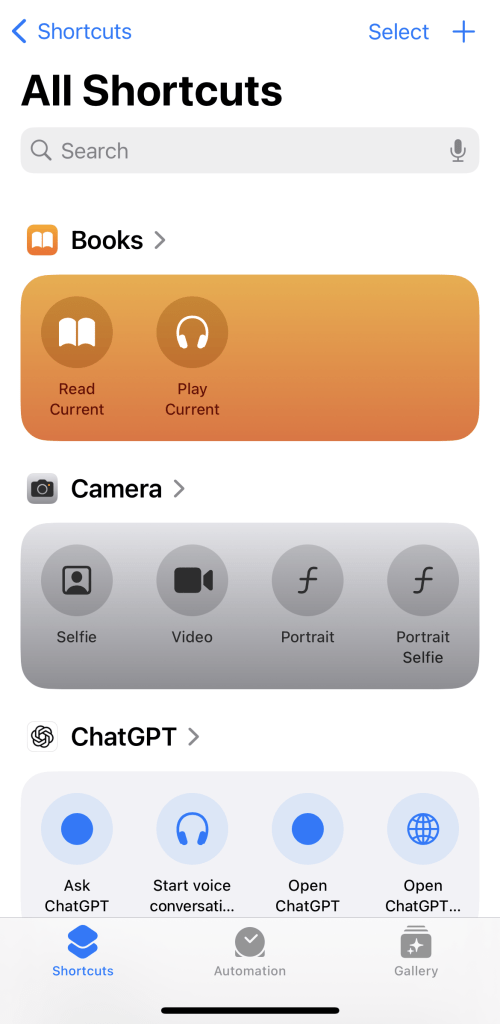
2. At the bottom, tap on the Automation tab.
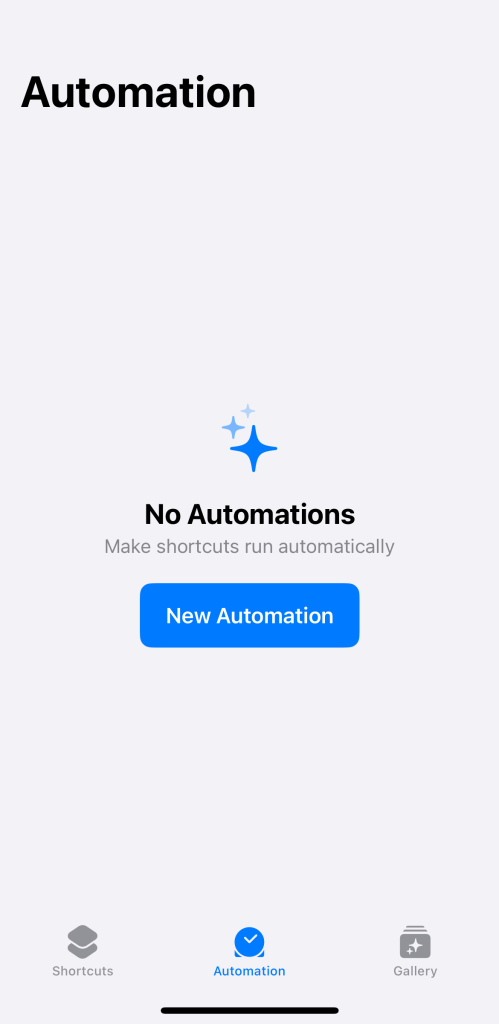
3. Tap New Automation.
4. Select Message as the trigger. (This will allow the shortcut to activate when an SMS is received.)

5. Fill in the Sender and Message Contains fields to filter the messages. Then, make sure Run Immediately is selected, and tap Next. Your screen should now look something like this:

6. In the Send Email action, make sure the Show Compose Sheet toggle is turned off. (If it’s on, it will pause the flow and prompt you to manually send the email.)
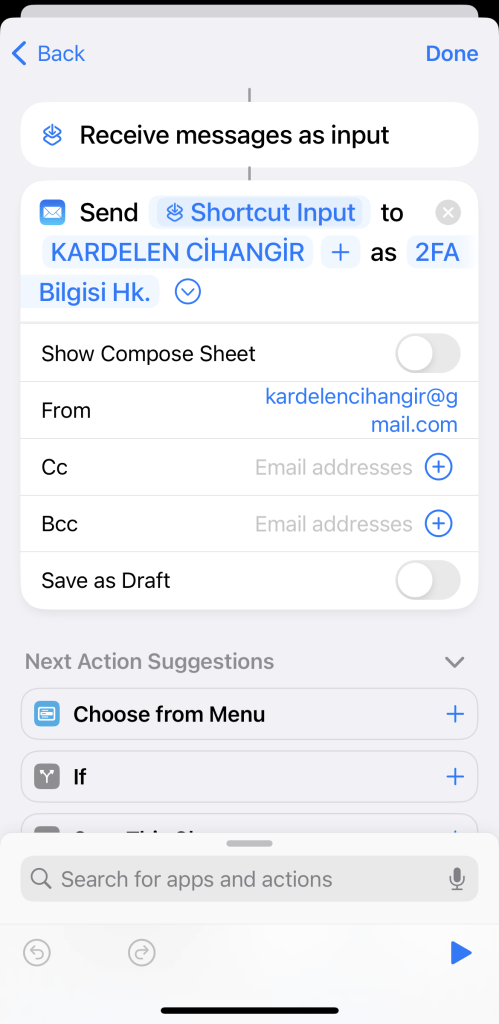
7. Finally, tap Done and you’re ready to test your automation.
By following these steps, you can fully automate the SMS OTP step in your workflows, no manual input required.
See you in the next post!
Happy automation 🚀





 Kardelen Cihangir
Leave a comment